

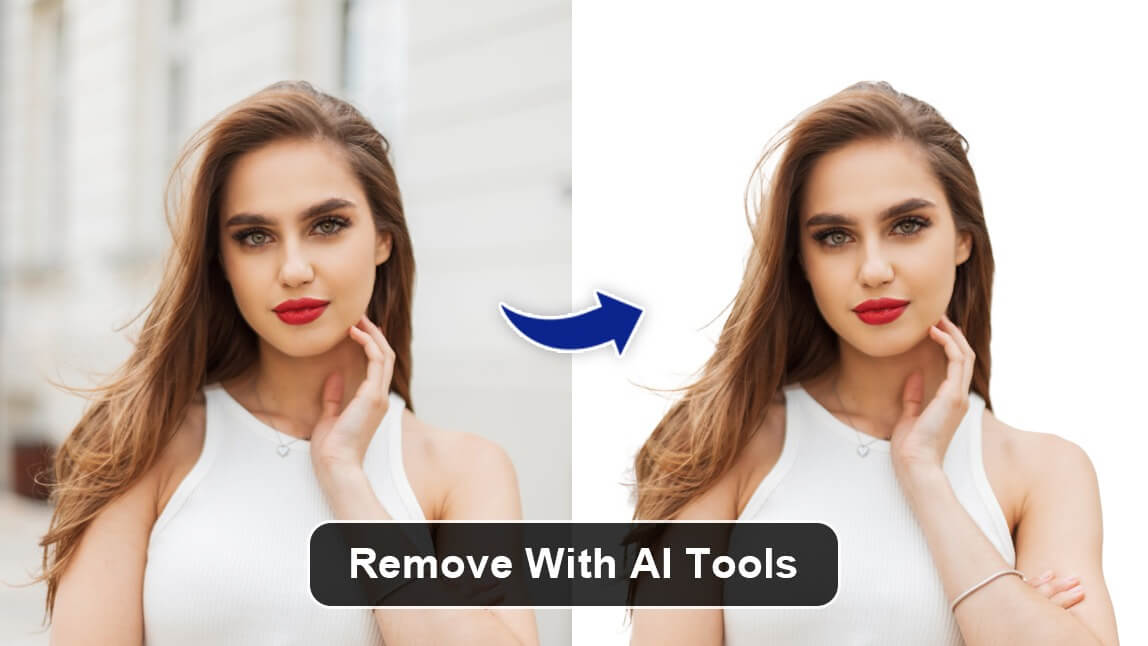
In the digital age, having a clean, professional photo is crucial, whether for social media, business presentations, or personal projects. One common challenge is removing or altering the background of a photo to make the subject stand out or fit a new context. This article will guide you through creating your own photo background remover, a tool that can help you edit images effectively. We’ll cover the basics of background removal, how to use filters like Gaussian Blur for a refined look, and offer tips on refining your photos.
Why Remove a Photo Background?
Removing a background can serve several purposes:
- Enhanced Focus: By isolating the subject from a busy or distracting background, the viewer’s attention is directed precisely where you want it.
- Versatility: A transparent or solid color background allows you to use the subject in various contexts, like presentations, promotional materials, or different photo collages.
- Professional Look: Clean backgrounds can give photos a polished and professional appearance, essential for business or portfolio purposes.
Getting Started with Your Own Photo Background Remover
Creating your own photo background remover can be a fun and rewarding process. Here’s a step-by-step guide to help you set up a basic tool that meets your needs.
1. Choosing the Right Software
First, select an image editing software that supports background removal. Adobe Photoshop is a popular choice, but there are free alternatives like GIMP or online tools like Canva and Fotor that are also effective.
2. Upload Your Photo
Open the image you want to edit in your chosen software. Make sure the photo is of high resolution for the best results.
3. Selecting the Background
Most image editors offer a selection tool to help you choose the background. Use tools like the Magic Wand, Lasso Tool, or Quick Selection Tool to outline the background area.
4. Removing the Background
Once the background is selected, you can delete it or mask it out, depending on your software’s capabilities. This action leaves you with a transparent background or a solid color background, depending on your preference.
Using Gaussian Blur to Refine Your Image
Sometimes, removing the background is not enough, especially if you want to make the photo appear more professional or if the background removal process leaves rough edges. Applying a Gaussian Blur can help smooth out these imperfections.Choose Blur, then Gaussian Blur, from the Filter drop-down option at the top of the screen. Set the Radius to a value that makes the backdrop seem as out of focus as you want it to be – roughly 70 should suffice. The primary topic will also seem blurred, although this isn’t a problem right now. You should also try to creat your own photo background remover in case you need further background editing and creation of transparency.
Applying Gaussian Blur
- Open the Blur Filter: Choose Blur from the Filter drop-down menu at the top of the screen.
- Select Gaussian Blur: From the Blur options, choose Gaussian Blur.
- Adjust the Radius: Set the Radius to a value that makes the backdrop appear as out of focus as you want it to be. For most cases, a Radius of around 70 should suffice.
By applying Gaussian Blur, you can soften the background or any rough edges left from the removal process. The primary topic of your photo will also appear blurred, but this is usually acceptable as long as the subject remains clear and sharp.
Fine-Tuning Your Edited Photo
After removing the background and applying Gaussian Blur, you might need to refine your image further. Here are a few additional tips:
Refine Edges
Zoom in on your image and check for any leftover background remnants or jagged edges. Use the Eraser Tool or a soft brush to clean up these areas manually.
Add a New Background
If you wish to place your subject on a different background, create a new layer behind the subject layer and insert your chosen background. Ensure that the new background complements the subject for a seamless look.
Save in the Right Format
Save your edited photo in a format that supports transparency, such as PNG, if you want to retain the clear background. For other uses, JPEG or TIFF formats might be more appropriate.
Additional Background Editing Tips
Experiment with Colors and Patterns
If you’re not satisfied with a plain background, consider adding colors, gradients, or patterns to make your image stand out more. Most editing tools offer various options to enhance your photo’s visual appeal.
Use Online Tools
If creating a background remover tool from scratch seems daunting, numerous online platforms offer easy-to-use background removal features. Tools like Remove.bg or Adobe Spark can simplify the process if you prefer a more straightforward approach.
Practice Makes Perfect
The more you practice removing backgrounds and refining your photos, the better you will become. Experiment with different techniques and tools to find what works best for your images.
Conclusion
Creating your own photo background remover is a valuable skill that can enhance the quality and versatility of your images. Whether you choose to use professional software or online tools, understanding the basics of background removal and refinement techniques like Gaussian Blur can help you achieve polished and professional results. By following the steps outlined in this guide, you’ll be well on your way to producing stunning photos with clean, effective backgrounds.
